New order queue
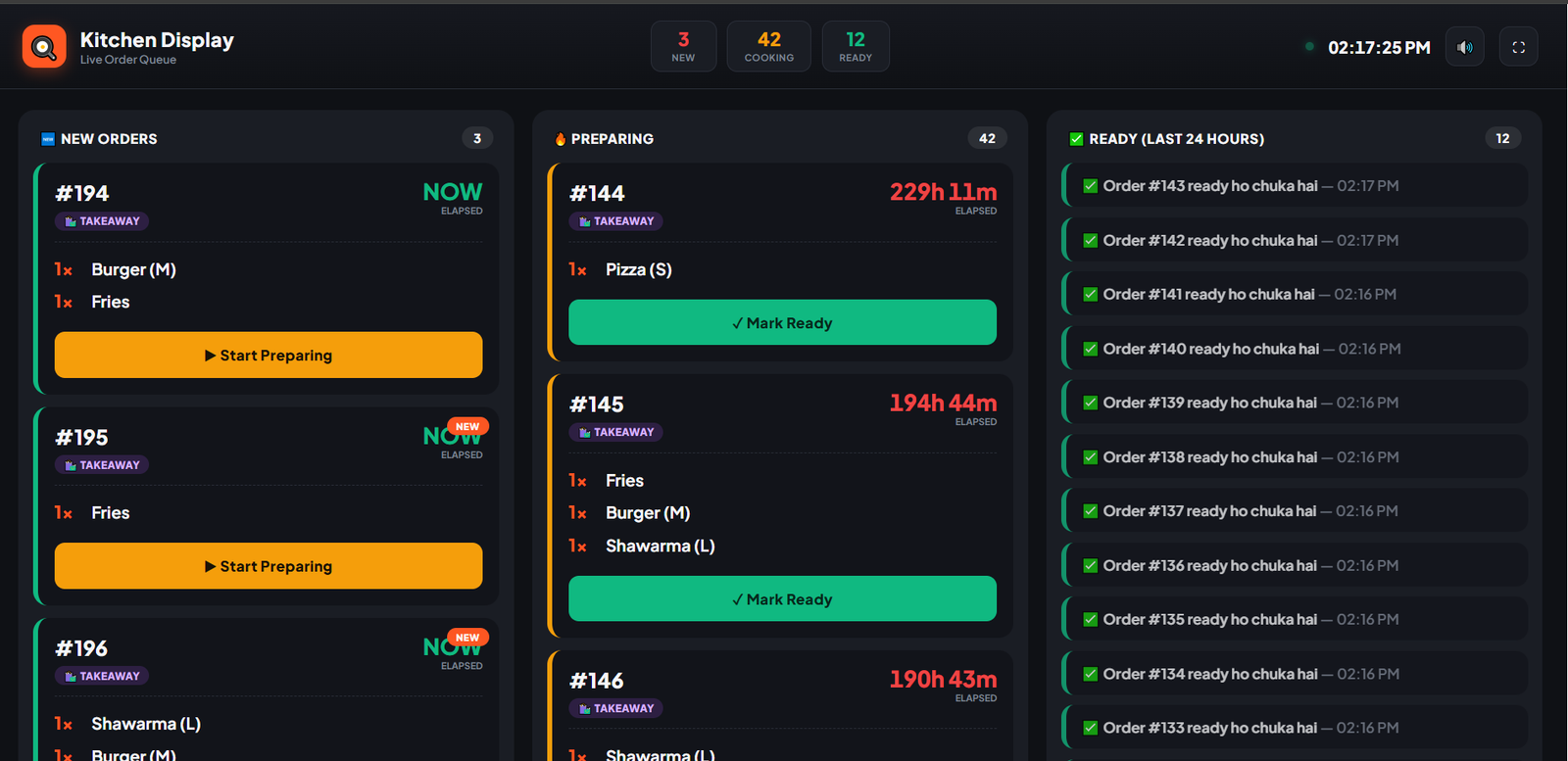
Fresh orders appear with the sale number, order type, products, quantities and elapsed time.
Kitchen display system
Send new restaurant orders into a clear kitchen queue, move them from preparation to ready, and help counter staff follow progress without paper confusion.
Built for daily restaurant work
Every active order stays visible in the correct stage so cooks can focus on preparation and the counter can follow progress.
Fresh orders appear with the sale number, order type, products, quantities and elapsed time.
Kitchen staff can move a new ticket into preparation with one clear action.
Active cooking orders remain grouped together until the team marks them ready.
Recently completed kitchen orders appear in a separate ready list for quick reference.
Use the kitchen sound control to help alert staff when a new order reaches the display.
Open the kitchen queue in a focused layout suitable for a dedicated restaurant screen.
How it works
The kitchen screen turns the preparation process into simple, visible stages that staff can update as work progresses.
Order reaches kitchenA new counter or table order appears in the new-order column with item details.
Kitchen starts workStaff select Start Preparing and the ticket moves into the active cooking queue.
Items are preparedThe order remains visible with elapsed time while the kitchen completes the food.
Order is readyMark Ready moves the ticket to the ready list so service staff can continue.
Frequently asked questions
Need help with your restaurant setup? Our team can guide you on WhatsApp.
Orders created through the connected BitePOS workflow appear in the kitchen queue with their item details.
Yes. Active cards show elapsed time to help the team identify older orders.
The main workflow separates orders into new, preparing and ready stages.
BitePOS supports a kitchen workflow that can use the kitchen display and compatible kitchen printing according to the shop setup.
Yes. The focused full-screen layout is designed to remain readable on a dedicated kitchen display.
Ready when you are
Start a 7-day free trial and get setup guidance from our team.
